
Today’s opening hours: Universitätsbibliothek from 10:00 to 18:00 o’clock · Teilbibliothek Mil: now closed · Teilbibliothek Jura: now closed


Upon request, HSU students can get their own workstation in the library.
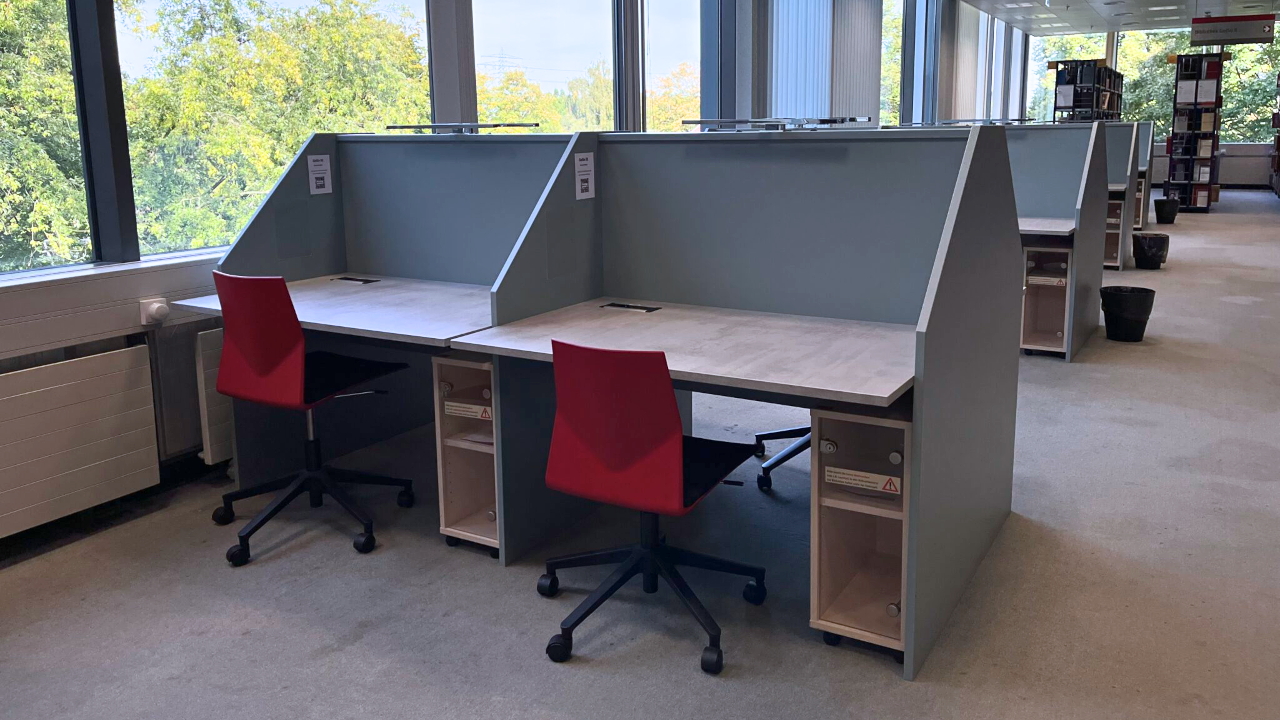
The workstations are located in the WiSo I, GeiSo I and MB/ET I sections and can be booked for a period of 14 – 120 days. They are equipped with sockets, USB slots, lamps and a rolling file cabinet for storing personal items.
A large pc screen is available as add-on or via a separate order in Anny.
All booked workstations are provided with an attendance record and are to be used only by the person who booked the workstation. Free workstations without attendance record can be used by all (even non-HSU members).
Universitätsbibliothek (Univeristy Library), GeiSo I and WiSo I sections (2nd floor) and MB/ET I section (1st floor).
The workstation can be booked for 14 – 120 days. Use the cancellation function for earlier cancellation. Extension of the period of use cannot be made. Another booking can, however, be made outside the booking period.
Every 7 days, the attendance record must be confirmed with a stamp by the library staff or guard service. In case of absence (e.g. illness, leave), the library staff must be informed in good time. If the stamp is not provided in good time, the workstation will be cleared and made available to the next student.
Personal items can also be locked there. All books that are allocated to your library account can be locked in the rolling file cabinet. This is not permitted for perishable items.
Books that you use for a longer period of time may only be left on the desk if they have been allocated to the workstation by the library staff. This ensures that in case of loss students are not liable for the books lying around on the desk. Books that cannot be borrowed or trimester-specific reference items/documents are to be returned to the respective location at the end of the day.
HSU students will be notified by email of the successful assignment of workstations. You have two days from the beginning of the period of use to gain your access to the workstation at the information desk of the university library on the 2nd floor. If access is not gained during this period, the booking will be cancelled and the workstation made available to other students.
You will receive an automatic reminder one day before the start of the booking period. This can be adjusted manually. Your bookings can be cancelled at any time. Only one study desk can be booked per booking period.
All regulations are included in the “rules for the use of workstations”.
Connect your mobile device to a monitor to work more comfortably with multiple applications or simply have a better view of your work.
This new service is initially a test run until the end of 2025 to determine the specific demand for monitors. We look forward to your feedback.
Six monitors can currently be booked for the study desks.
To log in to Anny, you do not need an additional account. Just use your RZ-Kennung (Computing Centre ID) to log in via Shibboleth.
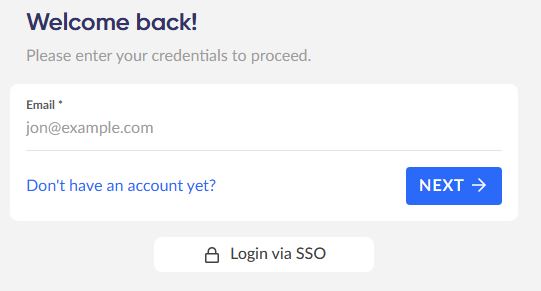
1. Select “Login with SSO”.
SSO stands for Single Sign-On and is required for logging in with your Computing Centre ID.
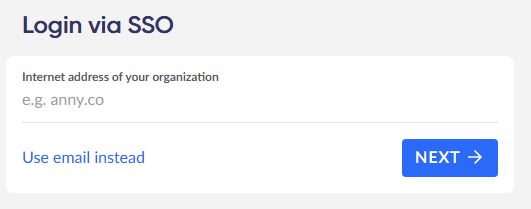
2. Log in with your Computing Centre ID (Shibboleth).
Now enter your full email address so that Anny can forward your registration to Shibboleth (e.g. [email protected]).
3. Select a period of your choice from 14 days upwards.
The default period always starts the following day. If you wish to change the selected period, click on the end date. This allows you to select a different start day.
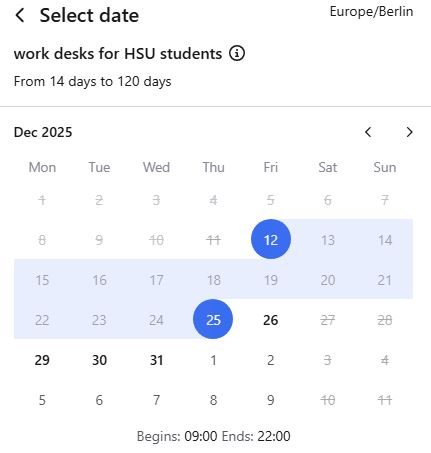
4. Please select the desired workstation.
The “select on map” option allows you to view the room plans and select a specific workstation.

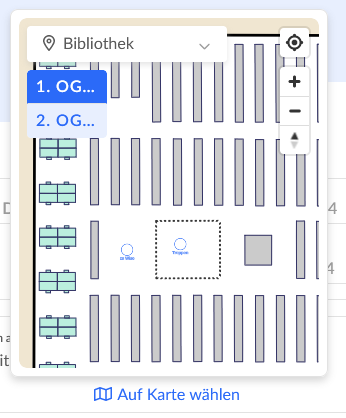
5. Add a rolling file cabinet to the booking.
If you wish to use the rolling file cabinet under the desk, e.g. to lock up your personal items, selsct +1.

6. Use the “Continue” button.

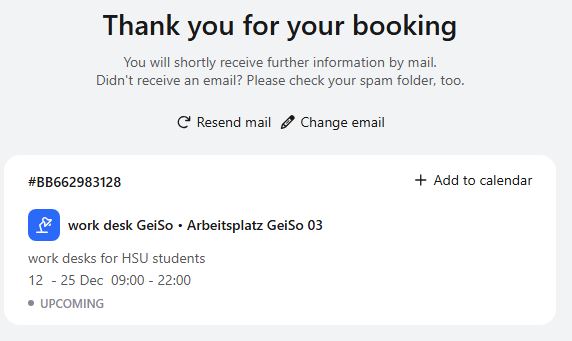
7. You will receive a booking confirmation and an overview of the selected dates.
You can set reminders or cancel your booking under “Manage booking”.